
Appearance
Exporting
Export compiles your writing into one clean file — the version you hand to a human. Markdown by default; PDF when you want pages.
Export exports what you're looking at
There is one Export button, in the top-right of the window, and one menu item behind ⌘⇧E. Both act on the tab you're working in:
| The tab in front | What Export gives you |
|---|---|
| Manuscript | The whole book, as one file |
| A document (a chapter, a part, a character, a note) | That document alone, with anything nested inside it |
| Graph | The graph, as a one-page PDF |
| Timeline | The timeline, as a one-page PDF |
The menu item says which it is before you pick it — Export Manuscript…, Export “Dead London”… — so there's no guessing. To export the whole book, open the Manuscript tab first.
The export sheet
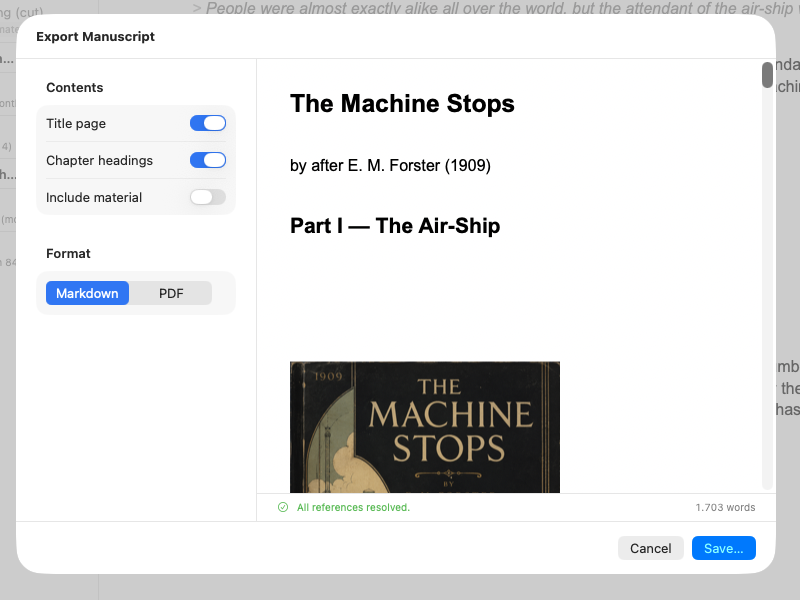
Exporting the manuscript or a single document opens the export sheet.
What export does
- Walks the manuscript in order — exactly the tree you see in the list. Exporting a single document walks only that document and whatever is nested inside it: a part comes out with its chapters, a chapter on its own.
- Writes every link out as the entity's current name; links where you chose your own wording keep it.
- Places every picture where it belongs, captioned with its label. A markdown export brings the image files along next to the output; a PDF renders the pictures in place.
- Strips your private
%%comments. - Leaves out material.
- Warns about broken links — a mention of something since deleted is listed for you, never silently printed.
Options
| Option | Effect |
|---|---|
| Title page | Start with the book title and author. Whole-book exports only — a single document is titled by its own heading |
| Chapter headings | Insert each chapter's name as a heading, sized by its depth — parts largest, then chapters, then scenes |
| Part and group text | A part or group's own page — its summary, epigraph, or working notes. Turn it off to export the prose without the scaffolding: the heading stays, and the documents nested inside are never affected. Offered wherever the export contains a container |
| Include material | Bring aside material along after all. Offered for the book, and for a document with others nested inside it — a document you export by name always exports, material or not |
| Format | Markdown writes the plain-text file; PDF writes paginated pages styled like the preview |
Live preview
The sheet shows exactly what will be written, plus the total word count. When it looks right, save, and choose where the file goes. The book's own Export/ folder is a safe place for it: Writingale ignores everything in there, so finished files never mix in with the ones you're still writing.
Exporting the graph and the timeline
The graph and the timeline can each be saved as a PDF — for a wall, a planning session, or a note to a collaborator. Open the view's tab and press Export.
What you get is the whole picture, not the part that happened to be on screen: the graph is fitted to one page at whatever scale it takes, and the timeline keeps every column, however far it scrolls sideways. The book's title heads the page so a printed copy says where it came from.
Each view's sheet has its own options, seeded from what you were looking at but yours to change without disturbing the view itself:
| View | Options |
|---|---|
| Graph | One toggle per kind — trim a crowded page to the kinds that matter |
| Timeline | Story or manuscript order; in story order, its own zoom, since a page has different room than a pane; and, if you'd focused the board on a part, whether to print the whole book or just that part |
Why a plain file?
A single plain-text manuscript is the most portable there is: every agent, editor, and typesetting tool can read it, and standard tools can turn it into Word documents, e-books, or print layouts. The built-in PDF covers the everyday case — a readable, paginated copy — without leaving the app.