
Appearance
Graph View
The graph is a living map of everything in your book and every connection between them — mentions in your prose, cast lists and other fields, and relationships all become lines. The manuscript acts as the graph's spine: chapters sit on a horizontal line in reading order, and the story world arranges itself around that main line.
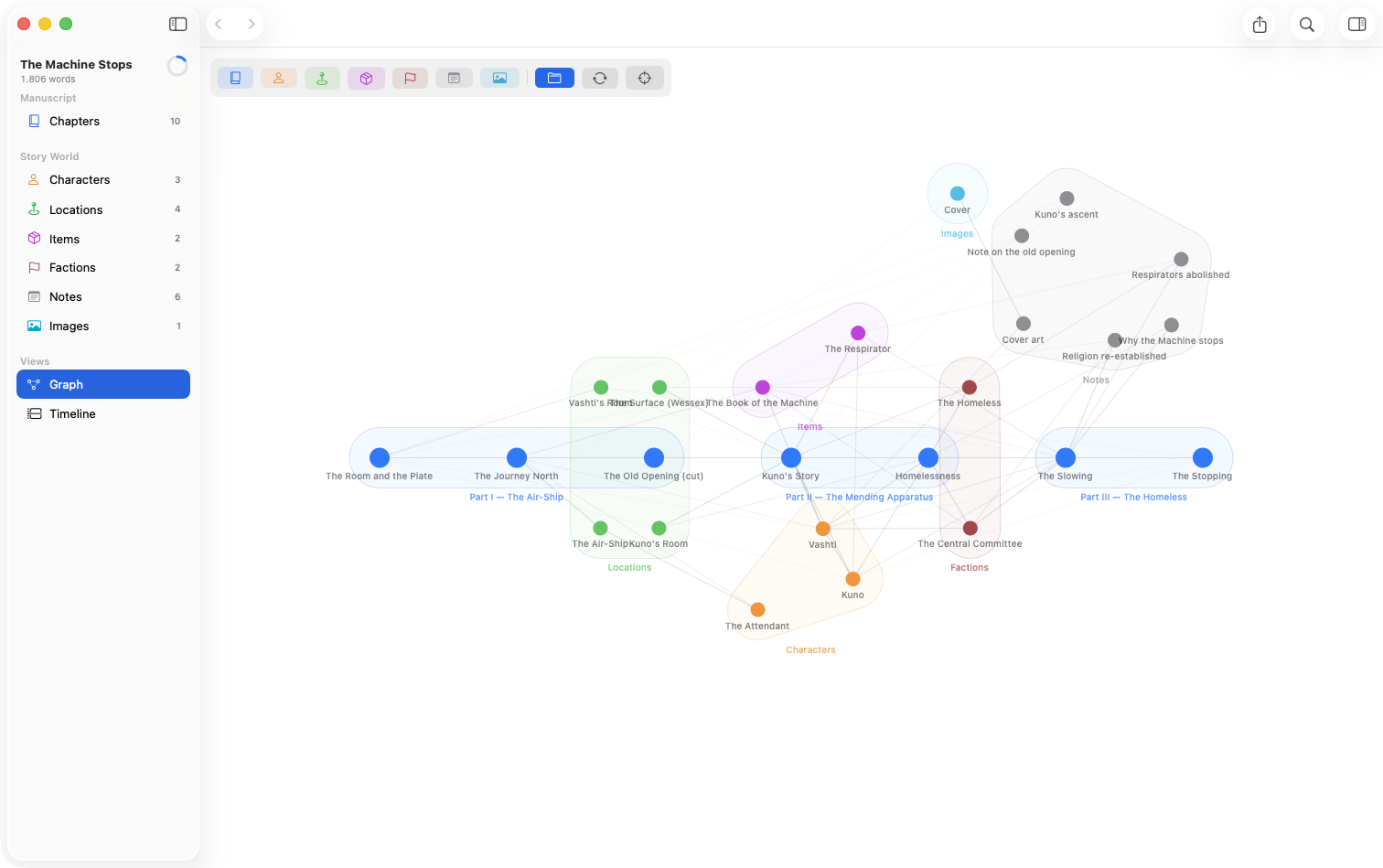
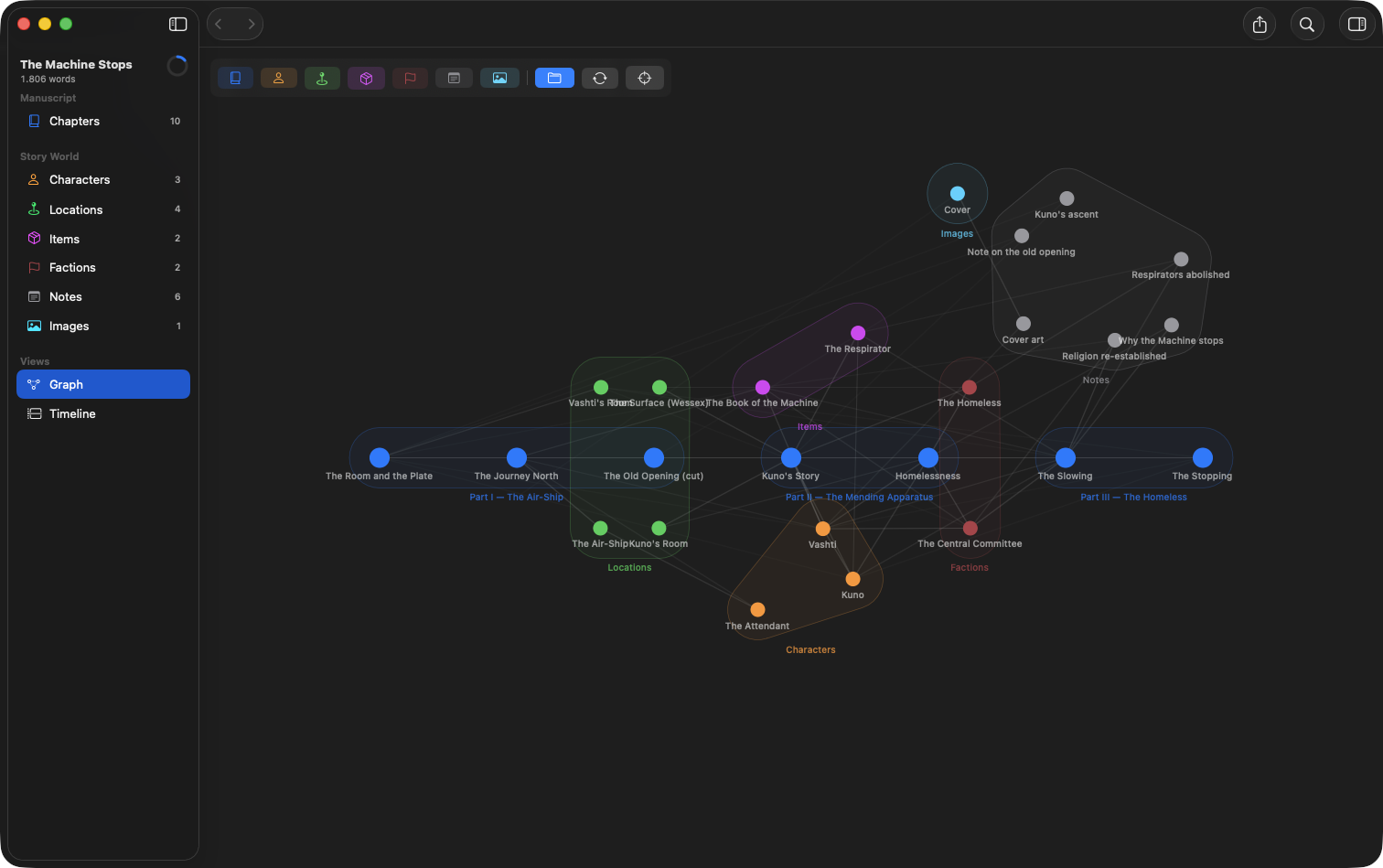
Open the graph from Views in the sidebar and it appears as a tab in the editor — put it in a split and it sits beside the chapter you're writing.
Reading the graph
- The spine — chapters on the horizontal center line, left to right in reading order. A character whose connections all land on the right half of the spine doesn't appear until late in the book; you can see it without reading a page.
- Dots are the things in your book, in their kind's color (the example book's factions are the dark red dots — a custom color). Parts draw no dot of their own — they appear as their group's outline and label. Pictures are dots too, connected to every document that shows them.
- Lines are connections. Consecutive chapters are also joined by a reading-order line, so the spine reads as a continuous thread even where chapters don't mention each other. A connection into or out of a part — which draws no dot of its own — lands on the part's outline label instead, rather than disappearing. Lines that stretch far across the graph fade, so the near, meaningful connections around any dot stand out from the far, incidental ones — except a selected dot's own lines, which always stay fully visible (see below).
- Group outlines trace the manuscript's structure — you can literally see each part wrapping its chapters. The story world gets the same treatment by kind: characters, locations, and the rest gather into labeled clusters with their own outline, held clear of the manuscript line. Even a single lone thing of a kind gets its own outline and label.
Clicking a dot shows its contents in the glance panel on the right — the same inspector the editor and timeline use (⌘4 or the toolbar's sidebar button) — with an Open button to jump to the document; its lines also light up, so you can trace what it connects to at a glance. Double-clicking jumps straight there.
Controls


- The chips along the top toggle each kind on and off — hide notes to see the story's social web, or show only chapters to see pure structure.
- The folder button turns the group outlines on and off.
- Re-layout rearranges the map; reset restores pan and zoom.
- Drag the background to pan, and pinch to zoom. A book of any length draws a map wider than the window, so getting around it is expected — the picture above is one stretch of a much longer spine.
- ⌘F searches the map: matches ring in colour where they stand and everything else recedes. See Search & Filtering.
With the graph tab in front, Export saves it as a PDF — the whole map fitted to one page, not just the part on screen. See Exporting.
Keeping a kind off the map
A kind of thing can be left off the graph entirely — useful for high-volume utility types that would only add noise. See Entity Types & Traits.