
Appearance
Manuscript Structure
The manuscript is a tree. Parts hold chapters, chapters can hold scenes, and the nesting goes as deep as your book needs. The example book runs two levels: Book One — The Coming of the Martians → The Falling Star.
The tree
The list column shows the manuscript as a tree, with disclosure triangles, progress rings, story-time hints, and word counts. The book remembers the order — it is the order of your finished manuscript.
To restructure:
- Drag a row in the list. Where you let go decides what happens. Parts drag the same way as chapters, carrying their contents with them.
Drop it on the top or bottom edge of another entry, where a coloured line appears, and it lands directly above or below that entry — inside the same part, if that entry is in one. This is how you take a chapter out of a part, too: drop it on the edge of the part itself.
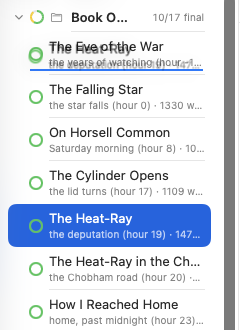
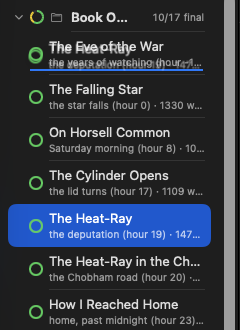
Drop it on the middle of another entry, which lights up with a coloured outline, and it moves inside that entry — a chapter into a part, or a scene into a chapter. A collapsed part opens so you can see where its new contents landed.
- Right-click → Move Into to move an entry inside a part, or back out to the top level — handy in a long book, where the drop target may be several screens away.
- Use the inspector's Nesting picker and Contents list, which do the same with buttons — including reorder arrows and New Sub-Chapter to create a child in place. See the inspector.
- Or drag the cards in the timeline's Manuscript Order, where the whole book is laid out as one strip in reading order — chapters individually, or a whole part at once by its band.
Progress rings
Every chapter with a status shows a small circular indicator, like a miniature of the goal ring:
- A single chapter's ring fills clockwise in its stage's color by how far along the workflow the stage sits — a quarter of the way through a four-stage workflow fills a quarter of the circle; the final stage closes it.
- A part's ring fills by the average progress of its chapters — one arc per chapter in that chapter's stage color, laid end to end, so a part shows both how done it is overall and how each child is doing, at a glance. The ring only closes when every chapter is final.
A part's status is always derived from its chapters, never set by hand. Hover for the details; the row's 2/4 final count means two of four chapters have reached the final stage.
Splitting a chapter in two
Writing runs long, or two scenes turn out to be two chapters. Right-click in the editor where the break belongs and choose Split Here.
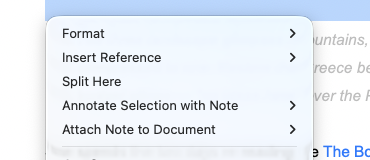
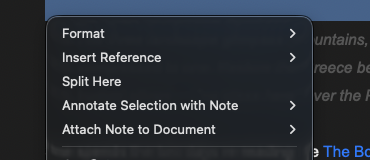
Everything from that point down moves into a new document right after this one, at the same level in the tree and of the same kind. What's left above stays where it is. Both halves are tidied at the cut, so you don't inherit stray blank lines.
A few things worth knowing:
- The break happens where you right-clicked, not where the cursor was — click exactly at the line you want the new document to start with.
- If the new part starts with a heading, that heading becomes its name (
## Dead London→ a document called "Dead London"). Otherwise it's named "Untitled" plus its kind, ready to rename in the inspector. - The new document opens right away, so you can carry on writing in it.
- The command appears only in documents that are part of the manuscript, and only when there's text below the click to move.
Joining two chapters
The reverse lives in the list: right-click a document and choose "Merge into …", which names the document directly above it. Its text is appended to that one and the document itself is removed.
Merging is offered only where it makes sense — the two must be neighbours at the same level, and neither may contain other documents. Every mention of the merged document anywhere in the book is repointed to the survivor, so nothing is left pointing at something that no longer exists.
Material
Toggle Material in the inspector to mark something as aside material: it stays visible in the tree (dimmed, with a small "material" badge) but is left out of export, goals, and progress. Use it for deleted scenes you can't quite delete, voice experiments, or an opening you haven't committed to. The example book's Text and rights (not part of the book) is material.
Documents from outside
Drop a .md or .txt file from your Mac onto a category in the sidebar, onto the list, or straight into the editor. Writingale asks what the file should become — the category you dropped it on is preselected — and creates it: the file's name becomes the document's name, its text becomes the content. Dropping into the editor also inserts a link at your cursor.
It works the other way too: drag any document out of the list onto the desktop or into a Finder window to get it as a plain .md file.
If a file arrives in the book folder from outside the app — copied in, synced, restored — it slots into a sensible position automatically, and you can drag it where it belongs.