
Appearance
Quick Start
This walkthrough takes you from nothing to an exported manuscript in about ten minutes.
1. Create a book
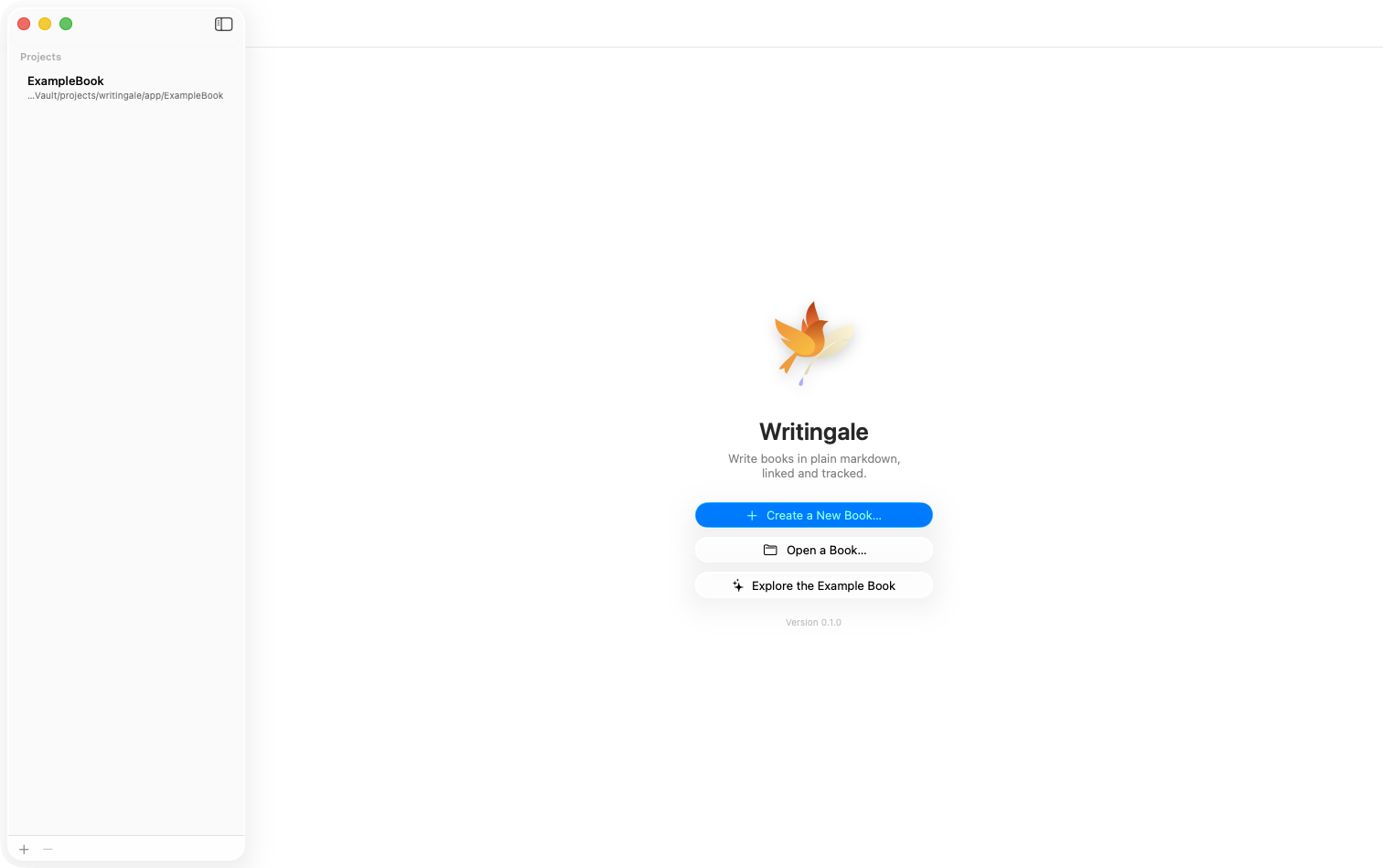
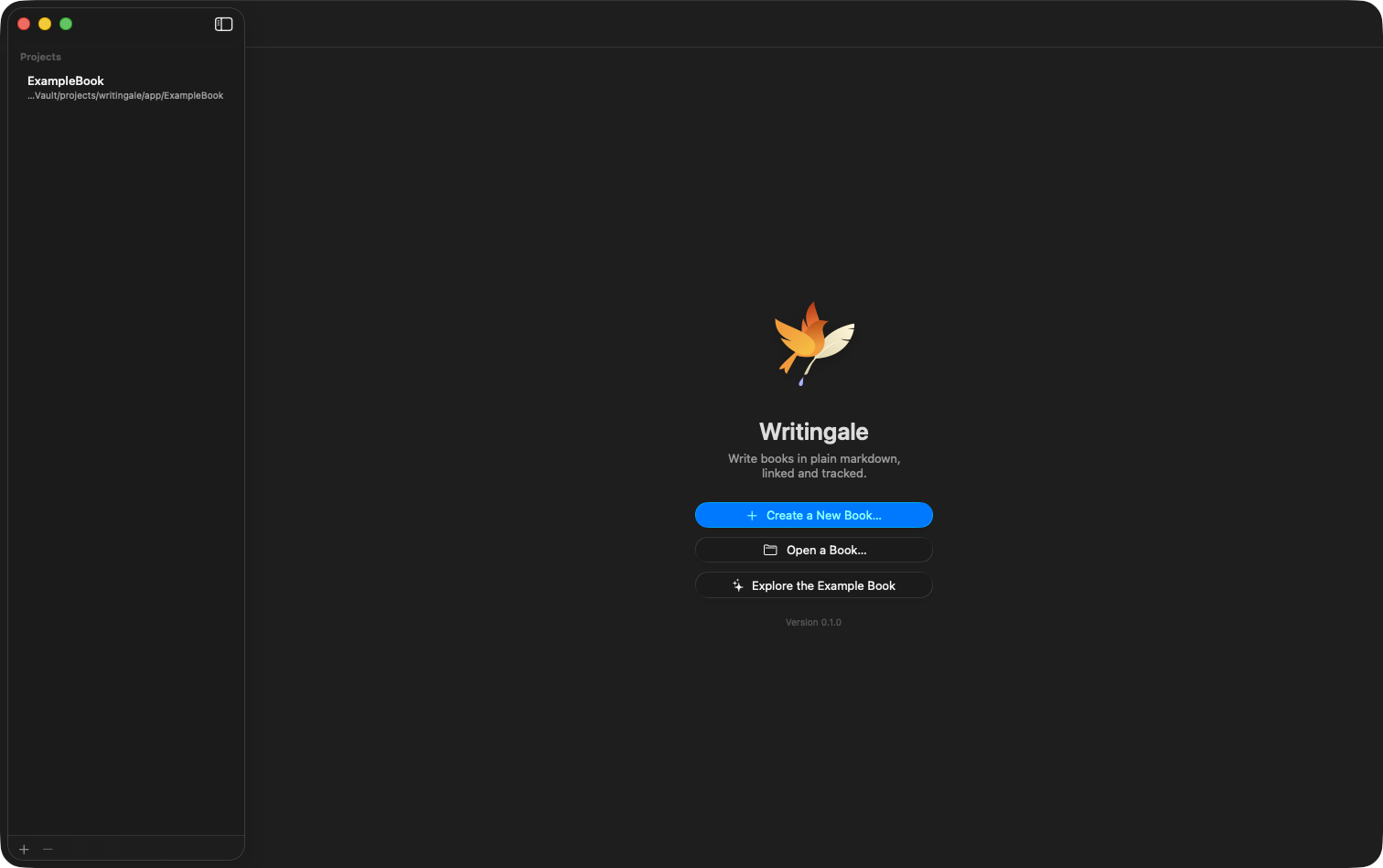
Launch Writingale. On the welcome screen, click Create a New Book…, give it a title and author, and choose where to keep it.
Writingale sets the folder up for you — a place for chapters, characters, locations, items, and notes. Everything it creates is a plain text file you could open anywhere.
2. Add a chapter and write
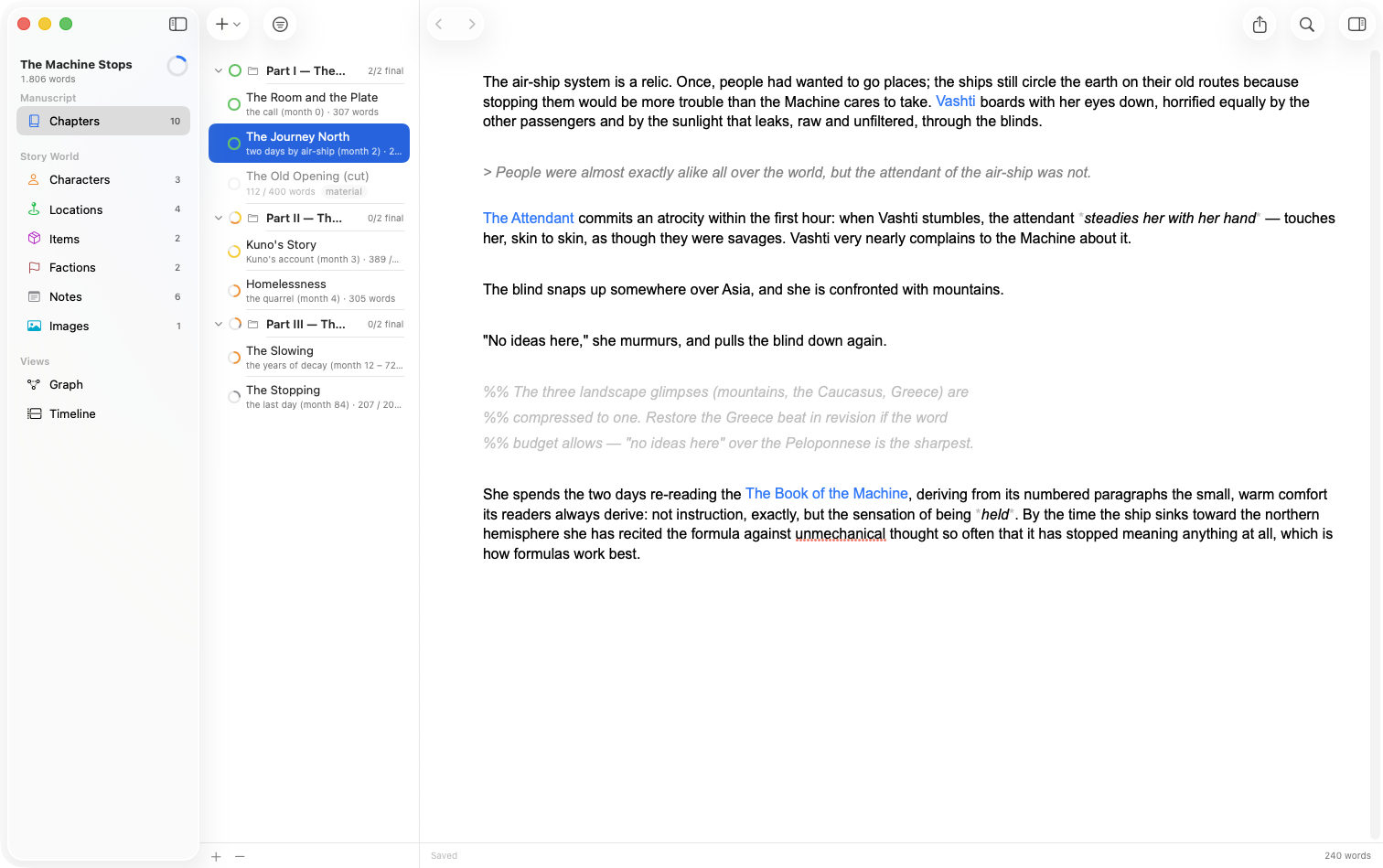
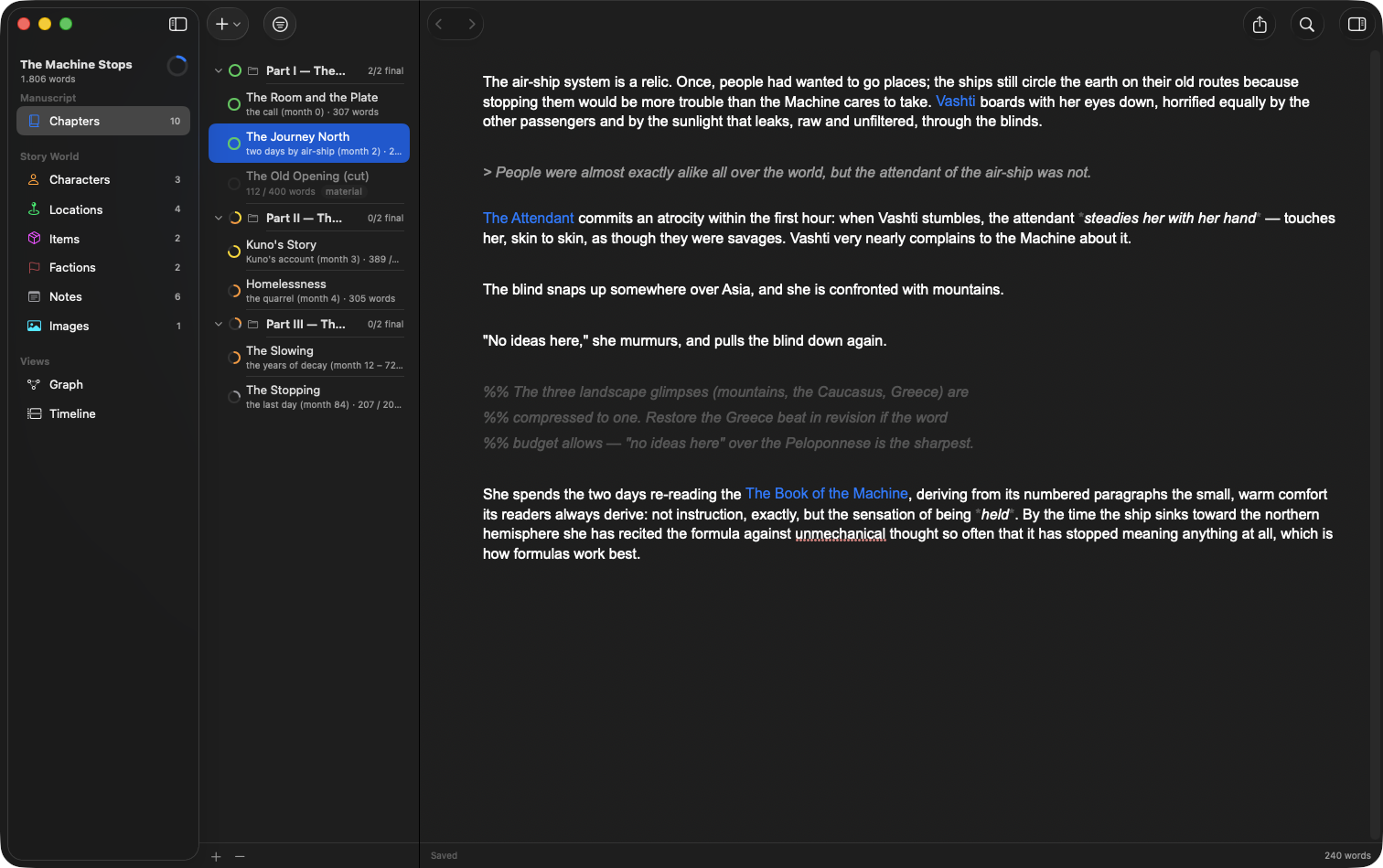
The main window has four columns: sidebar (the kinds of things in your book, and the views), list (everything of the selected kind, with the manuscript tree), editor, and inspector.
- Select Chapters in the sidebar.
- Click + above the list to create a chapter.
- Type. The editor styles your text as you write — headings,
**bold**,*italic*, lists, quotes. Press ⌘S to save when you're happy; unsaved documents are marked with a*and a dot in the list, and Writingale asks before anything unsaved could be lost.
3. Link your world together
Create a character the same way (select Characters, click +). Back in your chapter, type [[ — a popup lists everything in your book, grouped by kind. Pick the character.
The mention appears as the character's name, in the accent color. It's a link: it points at the character herself, not at her current spelling — rename her next month and every mention across the book follows. ⌘-click any link to jump to what it names.
Your own wording
Sometimes the narrator wouldn't use a name. Pick the entity, then write it your way: a link can display any text you choose — "her brother" — while still pointing at the right character underneath.
4. Fill in the story facts
With a chapter selected, the inspector on the right holds the chapter's facts: its completion status (outline → draft → revision → final), its place in story time (0 is where your story starts; negative numbers are before it), the POV character, the cast, and the locations.
These facts are what power the graph, the timeline, and each character's journey — the more you fill in, the more the views can tell you.
5. Set a goal
Click the ring in the sidebar header to set a writing goal — e.g. at least 60,000 words by December 31 — and to see your writing history: words today, daily average, best day, and the last week at a glance.
6. Export
Open the Manuscript tab, then press ⌘⇧E (or the Export button in the top-right). The export sheet shows a live preview of the finished manuscript: chapters in order, headings tracking parts and chapters, every link written out as a proper name, your private %% comments stripped. Save it as one clean file — markdown or PDF — ready for an agent, an editor, or a printer.
Export always acts on the tab you're in, so the same button hands you a single chapter, the graph, or the timeline when that's what's in front of you.
Where to go next
- Books & Entities — the mental model behind everything
- The Editor — markup, writing modes, and tabs and split panes
- Manuscript Structure — parts, chapters, scenes, and material
- Entity Types & Traits — make the app fit your book