
Appearance
The Inspector
The inspector (⌘4, or the toolbar button) is where the selected entity's facts live — everything about a chapter or character that isn't its prose. It's the same panel behind the editor, the graph's glance panel, and the timeline. It starts closed; open it when you need it, and it follows whichever pane is focused.
What the inspector shows depends on what's selected: a chapter offers completion and story time, a character offers relationships and a journey, your custom faction offers its own fields. Every screenshot below is a real close-up from the bundled example book, The War of the Worlds.
Overview
A row of small chips sits at the top — status, word count against any goal, how many things point here and how many this points at, attached notes, story time. Each chip jumps straight to its section, so you can check one fact without scrolling past everything.


"The Days of Imprisonment": in draft, 1,935 of 6,000 words, four things point here and it points at four, no notes, spanning hours 120–456.
Identity
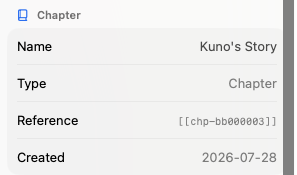
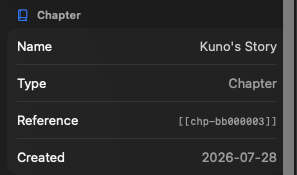
Every entity has this section. Name is editable right here — and renaming is always safe, because every mention in the book follows automatically. Type says what kind of thing this is. Reference is the entity's link token: select it, copy, and paste into any document to link to this entity from there. Created shows when it was made.
Image
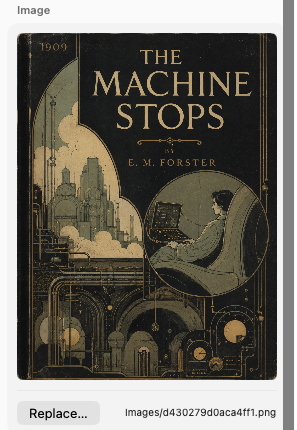
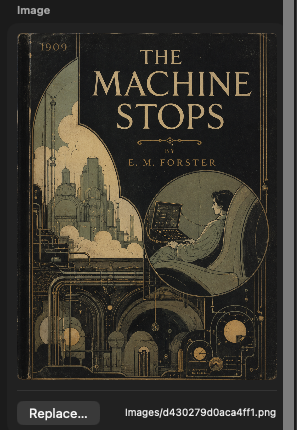
For picture entities: a preview of the stored image. To swap the picture, click Replace… or simply drop a new image file onto the preview — a colored outline appears while you hover. Everywhere the picture is embedded updates instantly, and its name, notes, and links all survive; only the picture itself changes. See Images for how embedding works from the writing side.
Completion
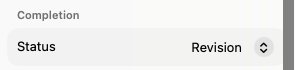
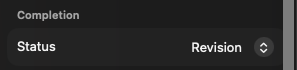
Where you move a chapter through your workflow: outline → draft → revision → final by default, though the stages are yours to rename in the type editor. The stage shows as a colored progress ring next to the chapter everywhere in the app.
Parts don't have their own Completion — their standing is always derived from their chapters. See Progress below.
Writing Goal & Material
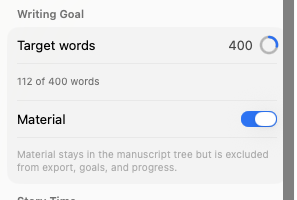
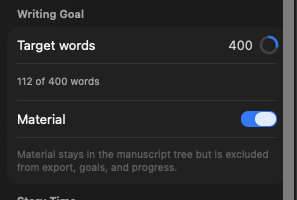
Target words gives this one chapter its own word goal, separate from the book-wide goal. A small ring fills as you write, and the list column shows the same progress under the chapter's name. See Goals & Statistics.
Material marks the entity as aside material: it keeps its place in the manuscript tree but is left out of export, goals, and progress — for deleted scenes you're not ready to delete, voice tests, cut openings. The example book's Text and rights (not part of the book) is marked this way: it keeps its place in the tree but adds nothing to the book's counts. See Manuscript Structure § Material.
Relationships
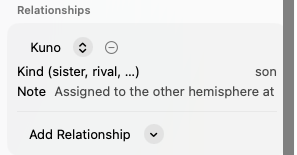
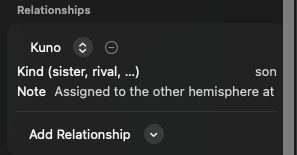
Who is what to whom. Each relationship names a target, a kind in your own words — "sister", "rival", "creditor", nothing is prescribed — and an optional note. Add Relationship lists every possible partner (relationships connect things of the same kind: characters to characters, factions to factions). Above, the narrator's entry for his brother: brother, "In London through the exodus; they do not meet again until it is over."
A relationship is one entry on one side — the narrator's "brother" doesn't automatically write the answering entry on his brother — so record it where it matters, or on both sides as the book needs. Relationships also draw as connecting lines in the graph.
Story Time
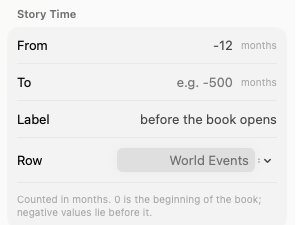
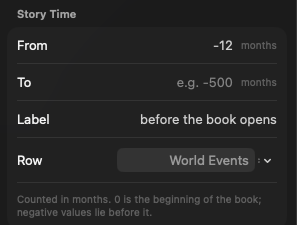
Where the entity sits in your story's chronology, counted in the unit your book uses (hours here — days, months or years work the same). 0 is the moment your book begins, and negative numbers are backstory: above, The gas jets on Mars spans hours −1,440 to −1,200, two months before page one. From places it (and is all the timeline needs); To turns it into a span; Label is your own description of the moment; Row picks which strip of the timeline it renders in.
Nesting, Progress & Contents
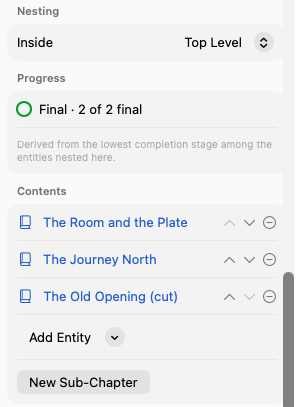
Three sections about the entity's place in the manuscript:
- Nesting — the Inside picker moves this entity into a part or chapter, or to the top level. Same result as dragging it in the list.
- Progress — appears once something is nested here: a ring plus a tally, derived from the least-finished thing inside. Above, Book One reads "Revision · 10 of 17 final" — ten of its seventeen counting chapters are done, and the least-finished of them is still in revision.
- Contents — the children, in order: reorder with the arrows, remove with − (which moves the child back to the top level — nothing is deleted), attach something that already exists with Add Entity, or create a fresh child in place with New Sub-Chapter.
See Manuscript Structure for the tree as a whole.
Annotates
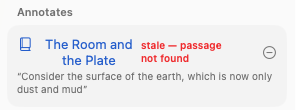
On a note: everything the note is pinned to. Above, Why the Martians fail is pinned two ways at once — to an exact passage in Dead London, quoted underneath it, and to The Death of the Curate as a whole document.
If a quoted passage no longer exists in its target, the pin is flagged stale in red rather than silently discarded — the example book's Note on the epigraph is left that way on purpose, so you can see what it looks like. Pinning happens in the editor — select text, right-click — or from the target's own Notes section.
Notes
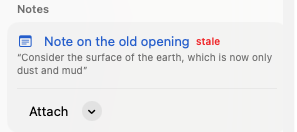
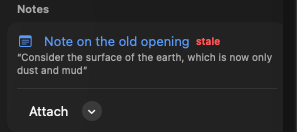
The same connection seen from the other side — on any entity, the notes attached to it, with their quoted passages and the same stale flag. Attach pins an existing note to the whole document, or creates a brand-new note and takes you to it. See Annotations for how quotes survive editing.
Fields
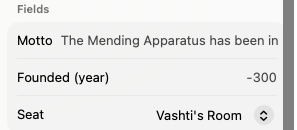
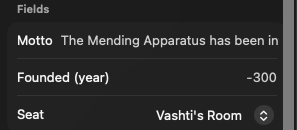
Your type's own fields, exactly as you defined them in the type editor. Single-value fields — a line of text, a number, one link — share the Fields section: above, the example book's New Order faction with its motto, founding year, and seat.
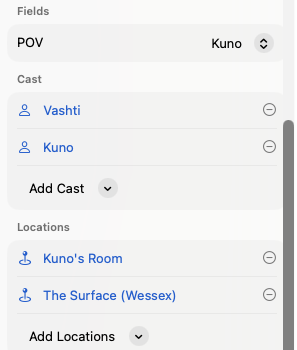
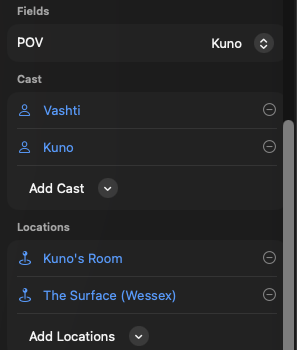
Fields that hold several entries — a cast, a list of holdings — each get a section of their own, with a remove button per entry and an Add menu offering everything eligible: above, the same faction's holdings (plain text) and members (links). Blue entries are links — click one to go there.
Referenced By
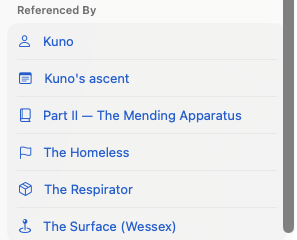
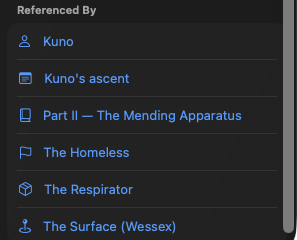
Everything in the book that points at this entity — chapters that cast this character, notes about her, items she owns, the part that contains this chapter. It's the answer to "where does this appear?", kept up to date automatically. Click any entry to jump there. Something nothing points at yet says so plainly: "Nothing references this yet."
Journey
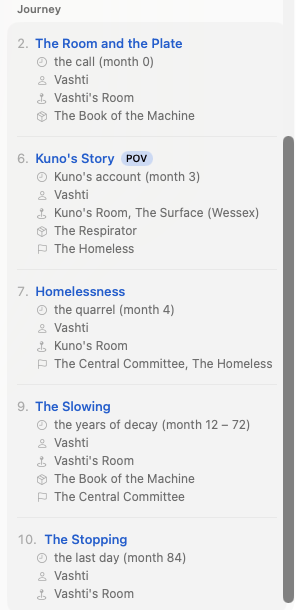
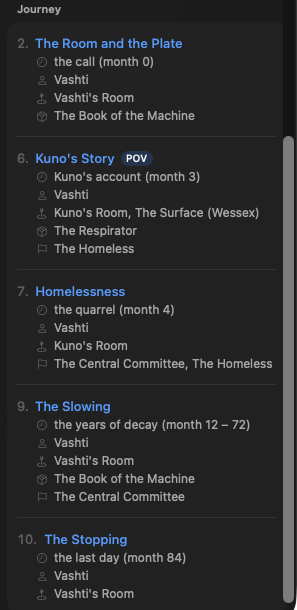
A character's itinerary through your book — every chapter they appear in, in reading order, with the story time, a POV badge where the chapter looks through their eyes, and who and what else shares each scene. It's worked out entirely from the chapters themselves; there's nothing to maintain here. See Journeys.